You click Edit with Elementor, ready to work on your page, and… nothing happens. The gray screen sits there, the little E logo spins endlessly, and your widgets never load. You refresh the page. You clear your cache. You might even yell at your screen a little.
Before you assume your website is broken or start uninstalling plugins in a panic, stop. Elementor has a built-in panic button designed exactly for this situation.
It’s called Safe Mode.
Safe Mode is the quickest way to troubleshoot the grey screen of death without touching a single line of code. In this guide, we’ll show you exactly how to trigger it, why it works, and how to use it to get your editor back online in seconds.
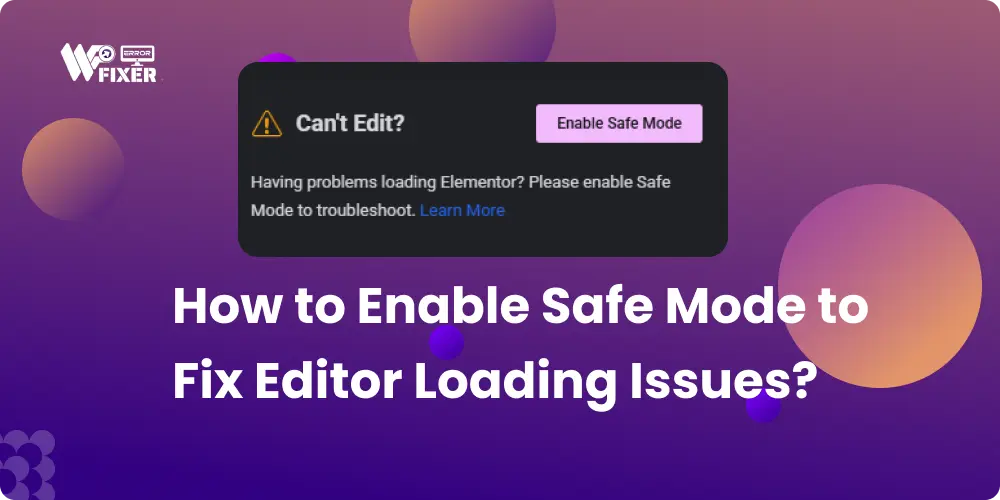
Can’t Edit? Enable Safe Mode Having problems loading Elementor? Please enable Safe Mode to troubleshoot.

What is Elementor Safe Mode, Anyway?
Think of Elementor Safe Mode like rebooting your computer in “Diagnostic Mode” (or Safe Mode on Windows).
When you usually load your WordPress editor, you’re loading a massive cocktail of components: the Elementor plugin, your main theme, and all the dozens of other plugins you’ve installed (SEO, caching, social sharing, etc.).
When the Elementor editor breaks or gets stuck, it’s almost always because one of those other plugins or your theme is having a fight with Elementor.
Safe Mode cuts the noise. When you enable it, Elementor does two key things only for you, the logged-in administrator:
Temporarily Deactivates All Non-Elementor Plugins: It stops all other plugins from running.
Switches to a Basic Theme: It forces your site to use a bare-bones WordPress theme (like Twenty Twenty-Four) instead of your complex, fancy theme.
Your actual site visitors won’t see a thing it’s completely invisible to them. It’s just a temporary, clean workspace for you to fix the problem.
How to Use Safe Mode in 3 Easy Steps
The goal of Safe Mode is to answer one question: Does the editor load when it’s just Elementor running alone?
Step 1: Enable Safe Mode
When you see the error, click the Enable Safe Mode button right on the Elementor screen. Alternatively, you can go into your WordPress Dashboard:
Navigate to Elementor > Tools > Safe Mode.
Click Enable.
You will now be taken back to the Elementor editor, which should hopefully load perfectly!
Step 2: Start Troubleshooting (The Detective Work)
If the editor loads perfectly in Safe Mode, you now know that Elementor itself is fine. The problem is definitely caused by one of your other plugins or your main theme.
This is where you become a detective:
Check the Theme: Before anything else, temporarily switch your main theme to a default one (like Twenty Twenty-Five). If this fixes the issue, your theme is the culprit. Contact the theme developer.
Check the Plugins (The Core Test): If the theme isn’t the problem, go back to your Elementor > Tools > Safe Mode area and click Disable to turn Safe Mode off.
The Plugin Isolation Test: Go to your Plugins page and deactivate ALL of your plugins (except Elementor and Elementor Pro). Now, try loading your page in the Elementor editor.
If it loads: Start reactivating your plugins one by one, checking the Elementor editor after each one you turn on. The moment the editor breaks again, you’ve found the offending plugin.
Step 3: Fix the Culprit
Once you’ve identified the bad apple (plugin or theme), you have a few options:
Update: Check to see if there is an update available for that plugin or theme. A new version might have fixed the conflict.
Replace: If no update is available, you may need to find a replacement plugin that performs the same function without causing conflicts.
Contact Support: Reach out to the developer of the problem plugin or theme and report the conflict.
The Final Word
The Can’t Edit message is a shield, not a sign of failure. By using Safe Mode, you can quickly isolate the source of your problem without affecting your live website. It’s the most reliable, quick, and stress-free way to maintain a smooth building process!