Let’s be real, there are few things in the life of a website owner more terrifying than the White Screen.
You log in to post a blog or update a plugin, and suddenly, your beautiful site is gone. In its place is a stark, clinical white box with a message that feels like a punch to the gut:
“There has been a critical error on this website.”
If your heart rate just spiked, take a breath.
I have fixed thousand of WordPress sites, and I can tell you two things for certain:
Your site is not deleted. Your content is safe in the database.
You can fix this. usually in about 15 minutes.
This error is essentially WordPress protecting itself. Think of it like a circuit breaker in your house. A plugin or theme tried to do something the system didn’t like, so WordPress cut the power to prevent the whole house from burning down.
Note : If you are non-technical or you don’t have time to fix your website then your best option would be to contact wperrorfixer and show your issue to them because our team is dedicated to fixing your WordPress issue.
Here is your step-by-step, jargon-free guide to flipping that switch back on.
Step 1: The Easy Button (Check Your Email)
Before we start messing with files, check your inbox.
Since WordPress 5.2, the system includes a feature called Recovery Mode. When this error happens, WordPress tries to send an email to the administrator address (the one you used when you first installed the site).
What to look for: An email subject line usually reading “Your Site is Experiencing a Technical Issue.”
What to do: Open the email and click the Recovery Mode link.
This link is a backdoor. It pauses the error just for you, letting you log into your dashboard. Once you’re in, you’ll see a notification telling you exactly which plugin caused the crash. You just click “Deactivate,” and you’re done.
Didn’t get the email? No problem. Let’s get our hands dirty.
Step 2: The Usual Suspects (Disable Plugins)
If you didn’t get the email, most of the time a bad plugin is causing the problem. And because you can’t open your WordPress dashboard to turn it off, we’ll use a simple trick to disable the plugins from outside.
Step 1: Open Your Hosting Panel
Most people use Hostinger (hPanel) i use cPanel, so here’s how:
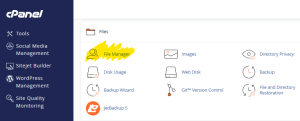
Hostinger (hPanel): Log in → go to Files → click File Manager
cPanel: Log in → find and click the File Manager icon

Step 2: Go to Your Website Files
Inside the File Manager:
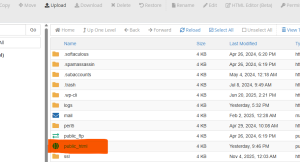
Open the folder called public_html
(This is where your main website files are stored.)
Step 3: Open the wp-content Folder
Inside public_html, find a folder named wp-content and open it.
Step 4: Find the Plugins Folder
Inside wp-content, you will see a folder named plugins.
This is where all your installed plugins are stored.
Step 5: The Trick to Disable All Plugins
Now the magic step:
Right-click on the plugins folder
Select Rename
Change the name to something like plugins_old

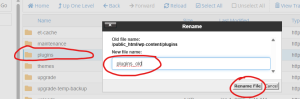
Once renamed, WordPress automatically disables all plugins because it can no longer find the folder.
Step 6: Check Your Website
Go back to your website and refresh.
If the problem is gone, that means one of the plugins was causing the error.
Why this works: WordPress looks for a folder named plugins. When it can’t find it (because you renamed it), it automatically assumes there are no plugins installed and loads the site without them.
Now, refresh your website.
If your site loads: Great! You know a plugin was the problem.
To fix it: Go back to your file manager, rename plugins_old back to plugins. Then, go inside that folder and rename individual plugin folders one by one (e.g., rename elementor to elementor_old) until the site breaks/fixes. This helps you isolate the bad apple.
Step 3: Switch Themes
If renaming the plugins folder didn’t bring your site back, the issue might be your theme. Maybe an auto-update contained a bug.
The process is almost identical to Step 2.
- Go back to wp-contents in your File Manager.
Open the themes folder.
Find the folder for the theme you are currently using (e.g., astra, divi, generatepress etc).
Rename it: Change it to themes_old.
WordPress will see the active theme is missing and will force the site to use a default theme (like Twenty Twenty-Five) if you have it installed. If your site loads (even if it looks ugly), you know your theme was the issue. You may need to reinstall a fresh copy of it.
Step 4: Increase the Memory Limit
Sometimes, your site isn’t broken; it’s just exhausted. If your hosting plan has a low memory limit (RAM) and a plugin tries to do a heavy task, the site crashes. We can manually tell WordPress to use more brainpower.
In your File Manager, go back to the main folder (public_html).
Look for a file named wp-config.php.
Right-click and select Edit.
Right before that line, paste this code:
Save the file and refresh your site. This bumps your memory limit up to 256MB, which is usually enough to get things moving again.
define( 'WP_MEMORY_LIMIT', '256M' );
Step 5: The Detective Mode (Debugging)
If you are still seeing the error message after all this, we need to stop guessing and ask WordPress exactly what is wrong. We do this by turning on “Debugging.”
Open that same wp-config.php file again.
Scroll down and look for a line that says: define( ‘WP_DEBUG’, false );
Change the word false to true.
If you don’t see this line at all, you can just add it.
Save the file.
Now, go back to your website and refresh the page.
Note : Your site still hasn’t been fixed despite following all the steps? No worries, wperrorfixer fixes all WordPress issues, so report your issue to the wperrorfixer team and get your site error-free as soon as possible.
Instead of the polite Critical Error message, you will likely see a white screen with some ugly text at the top. Read it carefully. It will look something like this:
Fatal error: … in /home/wperrrorfixer.com/public_html/wp-content/plugins/bad-plugin/index.php on line 44
That path tells you exactly where the error is. In this example, it points to a folder called bad-plugins. Now you know exactly which folder to go delete in your File Manager!
A Final Word of Advice
Once your site is back up and it will be remember to go back to your wp-config.php file and turn Debugging back to false. You don’t want visitors seeing error codes if something glitches in the future.
Fixing a Critical Error feels like bomb disposal the first time you do it, but once you realize it’s just a matter of renaming folders and checking switches, it becomes just another part of owning a website. You got this.