If you’re new to WordPress, the first place you’ll spend most of your time is the WordPress Admin Dashboard. This is the control center of your website where you create pages, write blog posts, change your theme, install plugins, and manage everything on your site.
In this easy guide, we’ll walk you through every important part of the dashboard so you feel comfortable and confident using WordPress even if you’re a total beginner.
Let’s get started!
What Is the WordPress Admin Dashboard?
The WordPress Admin Dashboard is the backend area where you manage your website.
You can access it by visiting:
yourwebsite.com/wp-admin
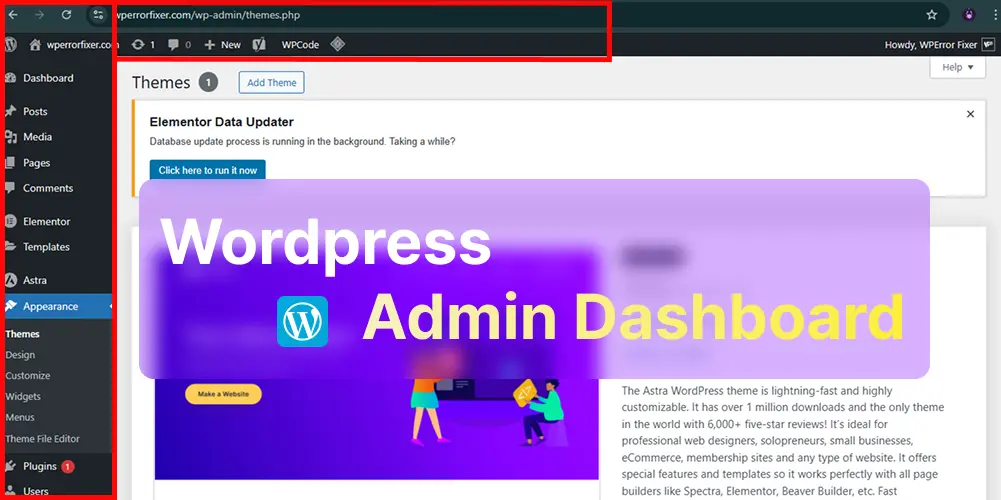
After logging in, you’ll see a simple and clean interface with menus on the left and information on the right.
It may look confusing at first, but trust me once you understand the basics, it becomes very easy.
Dashboard Menu Overview
The left side has all the main options you’ll use. Here’s what each one does:
1. Dashboard
This is the homepage of your WordPress admin area.
Here you see:
Quick Draft (write ideas fast)
WordPress updates
Important notifications
Site health status
2. Posts
Used for writing blog posts.
Inside Posts, you’ll find:
All Posts
Add New
Categories
Tags
3. Media
This is your media library where all media are stored. You can upload, delete, or edit media from here.
Images
Videos
PDFs
Files
4. Pages
Pages are for static content like:
Home
About
Contact
Services
Use Add New to create a new page.
5. Comments
This section shows comments left on your blog posts.
You can:
Approve
Delete
Reply
Mark as spam
6. Appearance
This is one of the most important sections. Here you can control:
Themes (your site’s design)
Customize (edit colors, layout)
Widgets
Menus
Theme file editor (for advanced users)
7. Plugins
Plugins add extra features to your website. In this section you can:
Install plugins
Activate or deactivate
Update plugins
Delete plugins
Example plugins: Yoast SEO, Elementor, Contact Form 7 etc.
8. Users
Manage all users on your site. You can:
Add new users
Change passwords
Assign roles (Admin, Editor, Author, Subscriber)
9. Tools
This area contains import/export tools and extra plugin-based tools. Beginners rarely need this at first.
10. Settings
This is where you control your overall site settings. Important options include:
Site title & tagline
URL settings
Reading settings
Comments control
Permalinks (SEO-friendly links)
Timezone settings
Important Dashboard Features Every Beginner Should Know
Here are some features that make managing your site easier:
Quick Draft :Write blog ideas directly from the dashboard.
Site Health: WordPress checks the health of your website and gives recommendations.
Updates: Keep WordPress, themes, and plugins updated to avoid errors.
Screen Options: Allows you to hide or show certain widgets on your dashboard.
Why Understanding the WordPress Dashboard Is Important
Knowing your dashboard helps you:
Manage your site faster
Fix small issues yourself
Install plugins safely
Avoid beginner mistakes
Improve your website easily
A strong understanding of the dashboard makes you more confident and saves you time.
Tips for Beginners
Don’t install too many plugins
Keep everything updated
Use a simple theme
Take regular backups
Learn basic settings first
Final Words
The WordPress Admin Dashboard may look complicated at first, but once you learn the basics, it becomes very easy to use. It’s the place where your entire website is controlled, so understanding it is the first step toward becoming comfortable with WordPress.
If you ever face any issue in your dashboard errors, login problems, plugin conflict, blank screen Wperrorfixer is always here to help you fix everything quickly.